
A job's page
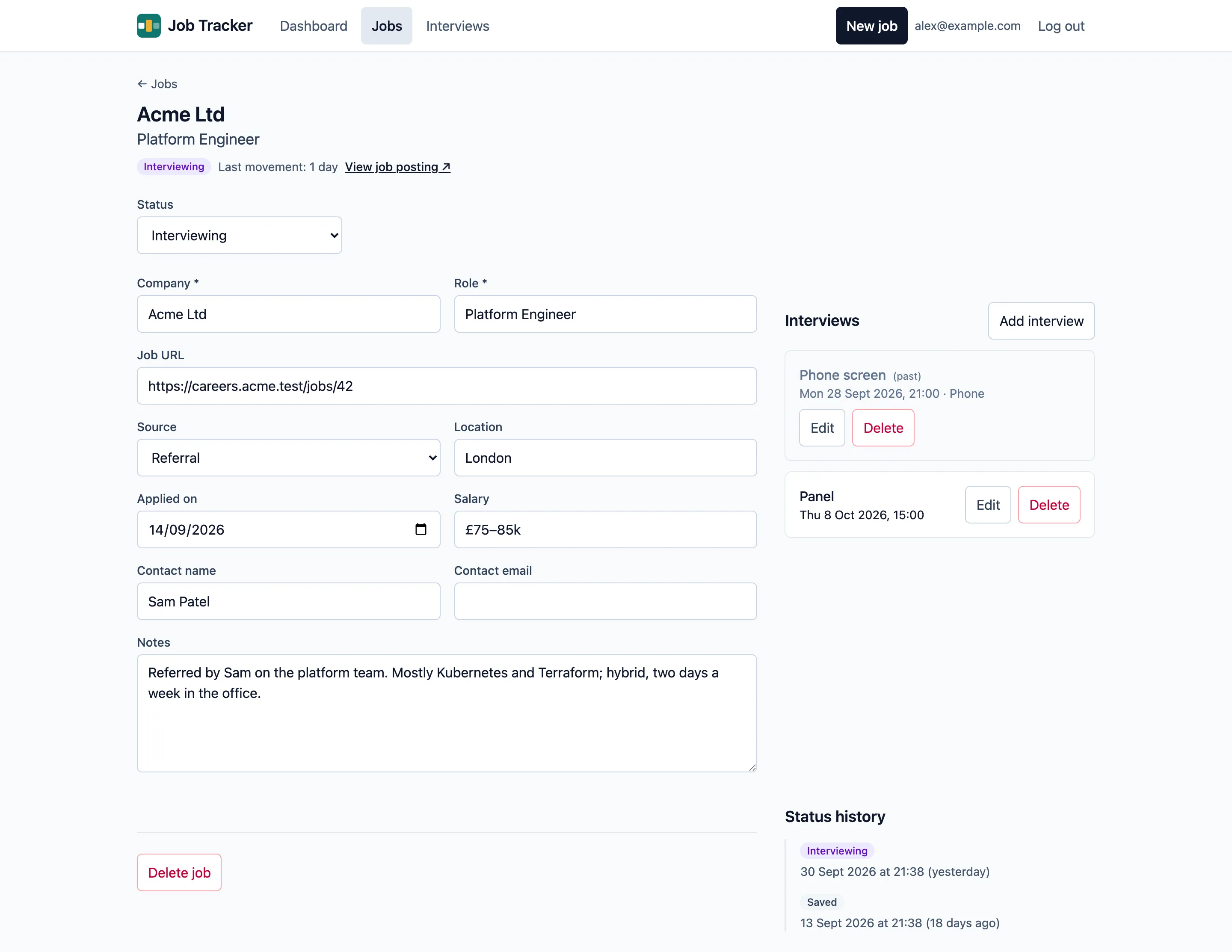
Select a job anywhere in the app to open its page. The header shows its company, role, status and, if it needs attention, why. View job posting opens its link.
Changing the status
Section titled “Changing the status”Choose the new status from Status. It changes straight away, and the change is added to the job’s status history. A status change is what counts as “movement” on the dashboard.
Moving between statuses also looks after the applied date:
- becoming Applied fills in today’s date, if the job doesn’t have one;
- an existing applied date is never overwritten;
- going back to Saved clears it, because a saved job hasn’t been applied for.
Editing the details
Section titled “Editing the details”Change any of the fields, then Save changes, or Discard to put them back. If you try to leave with unsaved changes, you’re asked first. Editing details isn’t movement, so it doesn’t take a job off the dashboard’s lists.
Interviews
Section titled “Interviews”A job’s interviews are listed on its page. See Interviews.
Deleting a job
Section titled “Deleting a job”Delete job at the bottom of the page asks you to confirm, and says what goes with the job: its status history and its interviews. Deleting can’t be undone.