
The dashboard
The dashboard is your starting point: what you have on, and what needs doing.
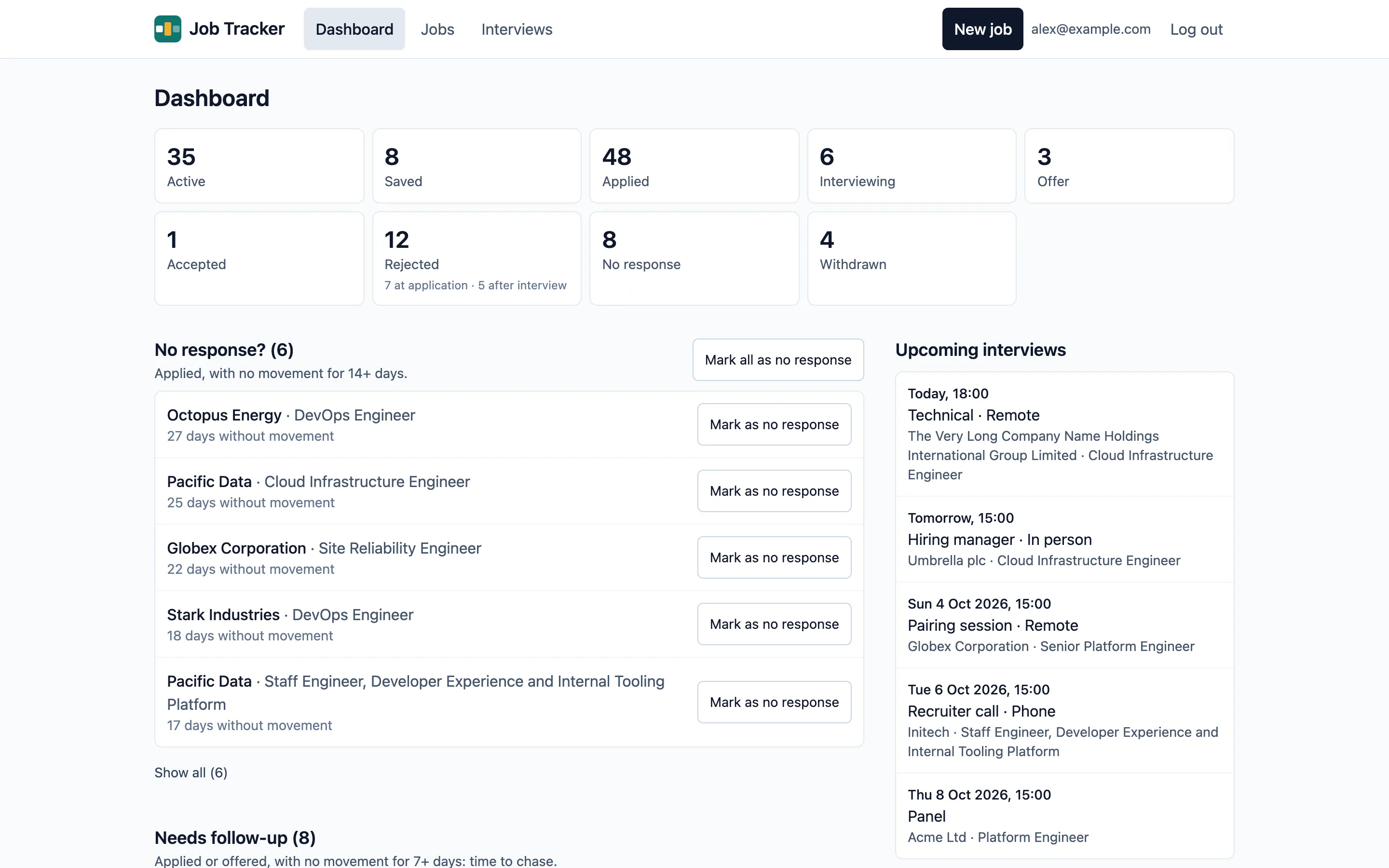
The counts
Section titled “The counts”Tiles across the top count your jobs by status: Active (saved, applied, interviewing and offer), Saved, Applied, Interviewing, Offer, Accepted, Rejected, No response and Withdrawn. Select a tile to see those jobs in the jobs list.
- Applied counts every job you’ve ever applied for, whatever its status now, so it isn’t a link.
- Rejected shows how many were rejected at the application stage and how many after an interview.
The lists
Section titled “The lists”Three lists show the jobs that need something from you. A job is only ever in one of them, and each list starts with the job that has waited longest.
“Without movement” means without a status change: editing a job’s details doesn’t count. The thresholds below are the defaults; your instance’s owner can change them.
| List | Jobs in it | What to do |
|---|---|---|
| No response? | Applied, with no movement for 14 days or more | Mark them as no response, or chase |
| Needs follow-up | Applied, with no movement for 7–13 days; or an offer with no movement for 7 days or more | Chase the recruiter |
| Still to apply | Saved 7 days ago or more | Apply, or remove them |
Each list shows five jobs, with Show all for the rest. Select a job to open it.
Marking jobs as no response
Section titled “Marking jobs as no response”In the No response? list:
- Mark as no response on a row marks that job. It disappears from the list straight away, and the counts update.
- Mark all as no response marks every job in the list, after asking you to confirm.
You can change any of them back from the job’s page.
Upcoming interviews
Section titled “Upcoming interviews”The panel lists your next five interviews, soonest first, with “Today” or “Tomorrow” for the next two days. Select one to open its job, or View all for the interviews page.
With no jobs at all, the dashboard offers to add your first one instead.