
Adding a job
Select New job in the header.
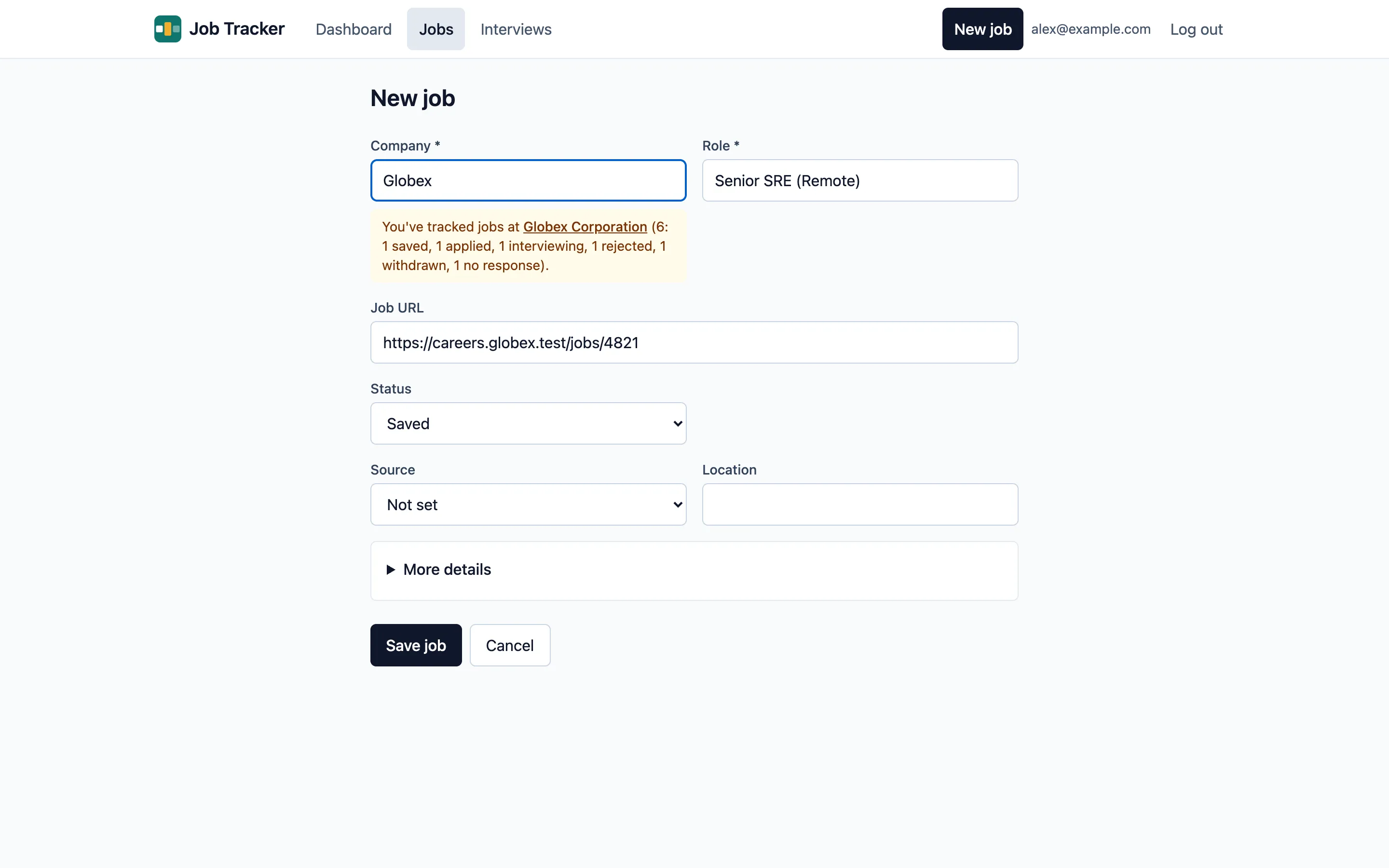
The form
Section titled “The form”Only Company and Role are required. The rest is whatever you have:
- Job URL: the posting’s link. Paste it first: Job Tracker works out the Source from it when it can (a LinkedIn or Indeed link, or a company’s own careers site on a common recruitment platform), and you can change it.
- Location, Salary, Contact name and Contact email. The contact can be any detail you have, not only an email address.
- Status: Saved by default, for a job you haven’t applied for yet. Choose another status if you’ve already moved on.
- Applied on appears once the status isn’t Saved. Leave it blank to use today’s date.
- Notes.
Then Save job. You’re taken to the job’s page.
Have you seen this company before?
Section titled “Have you seen this company before?”As you type the company name, Job Tracker shows any jobs you’ve already tracked there, with their statuses and links, so you know what happened last time. It matches on the start of a word: “ac” finds Acme and Accenture, but not Pacific. It’s only a reminder; you can still save.
Duplicate links
Section titled “Duplicate links”If another job already has the same link, saving shows Already tracked, with a link to
that job, instead of adding a second one. Links count as the same even if they differ only
in tracking parameters (utm_…, for example), letter case in the domain, or a trailing
slash.
Starting from a posting
Section titled “Starting from a posting”The page can be opened with the posting’s link and title already filled in:
https://<your instance>/jobs/new?url=<the posting's link>&title=<the posting's title>The title goes into Role for you to tidy up. This is how the browser extension works. If you weren’t signed in, you’re asked to sign in first and then brought back to the filled-in form; anything you’d typed before your session expired is kept, too.